> ## Documentation Index
> Fetch the complete documentation index at: https://cometchat-22654f5b-docs-agent-in-group-react-v6.mintlify.site/llms.txt
> Use this file to discover all available pages before exploring further.
# AI Agent Integration
> Enable AI-powered conversational assistance with chat history, contextual responses, and seamless handoffs.
| Field | Value |
| -------------- | ------------------------------------------------------------------------------------------------------------------------------------------------------------------------- |
| Packages | `com.cometchat:chatuikit-kotlin-android` · `com.cometchat:chatuikit-compose-android` |
| Key components | `CometChatAIAssistantChatHistory`, `CometChatMessageList`, `CometChatMessageComposer`, `CometChatMessageHeader` |
| Purpose | Enable AI-powered conversational assistance with chat history, contextual responses, and seamless handoffs. |
| Related | [AI Assistant Chat History](/ui-kit/android/v6/ai-assistant-chat-history), [AI Features](/ui-kit/android/v6/ai-features), [All Guides](/ui-kit/android/v6/guide-overview) |
Enable intelligent conversational AI capabilities in your Android app using CometChat UIKit v6 with AI Agent integration:
* **AI Assistant Chat History**
* **Chat History Management**
* **Contextual Responses**
* **Agent Detection**
* **Seamless Handoffs**
Transform your chat experience with AI-powered assistance that provides intelligent responses and seamless integration with your existing chat infrastructure.
**1:1 conversations only.** AI Agents currently respond only in one-on-one conversations between an end user and the agent user. They do not respond to messages sent in groups, even if the agent user is added as a member or owner. Group support is on the roadmap — share your use case on [feedback.cometchat.com](https://feedback.cometchat.com).
## Overview
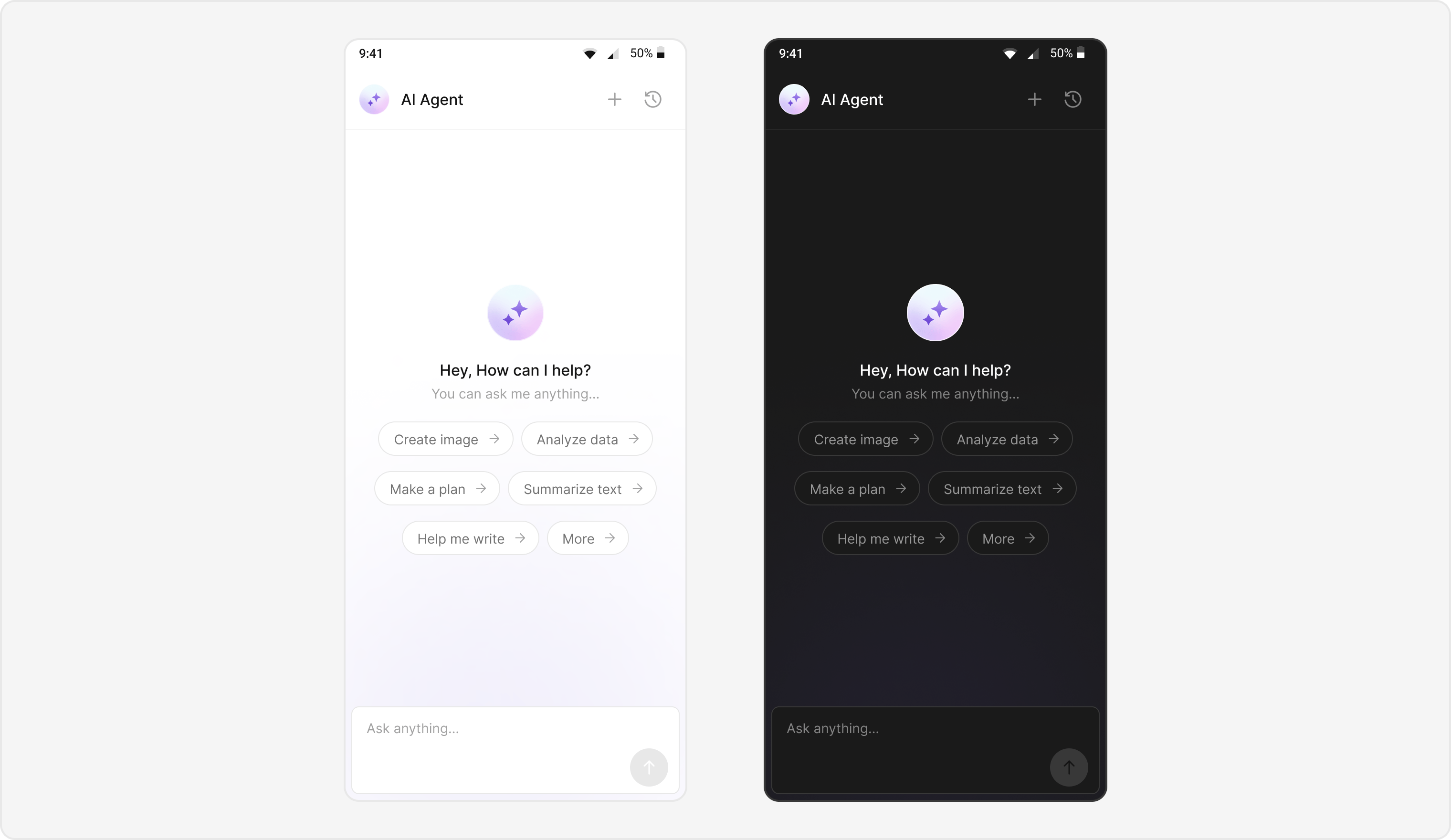
Users can interact with AI agents through a dedicated chat interface that:
* Provides intelligent responses based on conversation context.
* Maintains chat history for continuity.
* Seamlessly integrates with your existing user chat system.
The AI Agent chat interface provides a familiar messaging experience enhanced with AI capabilities, accessible through your main chat flow or as a standalone feature.
 ## Prerequisites
* Android Studio project with `com.cometchat:chatuikit-kotlin-android` or `com.cometchat:chatuikit-compose-android` in `build.gradle`.
* Internet permission in `AndroidManifest.xml`.
* Valid CometChat **App ID**, **Region**, and **Auth Key** configured via `UIKitSettings`.
* User logged in with `CometChatUIKit.login()`.
* AI Agent configured in your CometChat dashboard.
## Components
| Component / Class | Role |
| :-------------------------------- | :----------------------------------------- |
| `AIAssistantChatActivity` | Main activity for AI agent chat. |
| `CometChatAIAssistantChatHistory` | Displays previous AI conversation history. |
| `CometChatMessageList` | Shows AI messages with threading support. |
| `CometChatMessageComposer` | Input interface for AI conversations. |
| `CometChatMessageHeader` | Header with AI agent info and controls. |
## Integration Steps
### Step 1 — Activity / Screen Setup
Create the AI Assistant chat screen with proper layout configuration.
```kotlin AIAssistantChatActivity.kt lines theme={null}
class AIAssistantChatActivity : AppCompatActivity() {
private lateinit var binding: ActivityAiAssistantChatBinding
override fun onCreate(savedInstanceState: Bundle?) {
super.onCreate(savedInstanceState)
binding = ActivityAiAssistantChatBinding.inflate(layoutInflater)
setContentView(binding.root)
val messageJson = intent.getStringExtra(getString(R.string.app_base_message))
val userJson = intent.getStringExtra(getString(R.string.app_user))
var user: User? = null
var parentMessage: BaseMessage? = null
if (!userJson.isNullOrEmpty())
user = User.fromJson(userJson)
if (!messageJson.isNullOrEmpty())
parentMessage = BaseMessage.processMessage(JSONObject(messageJson))
initializeComponents(user, parentMessage)
initClickListeners()
}
private fun initializeComponents(user: User?, parentMessage: BaseMessage?) {
user?.let {
binding.messageHeader.user = it
binding.messageList.user = it
binding.messageComposer.user = it
}
if (parentMessage != null) {
binding.messageList.setParentMessage(parentMessage.getId())
binding.messageComposer.setParentMessageId(parentMessage.getId())
}
binding.messageList.setStyle(R.style.CustomCometChatMessageListStyle)
binding.messageComposer.style = R.style.CustomMessageComposerStyle
}
}
```
```kotlin AIAssistantChatScreen.kt lines theme={null}
import com.cometchat.uikit.compose.presentation.messageheader.ui.CometChatMessageHeader
import com.cometchat.uikit.compose.presentation.messagelist.ui.CometChatMessageList
import com.cometchat.uikit.compose.presentation.messagecomposer.ui.CometChatMessageComposer
@Composable
fun AIAssistantChatScreen(
user: User,
parentMessageId: Int? = null,
onNewChatClick: () -> Unit = {},
onChatHistoryClick: () -> Unit = {}
) {
Column(modifier = Modifier.fillMaxSize()) {
CometChatMessageHeader(
user = user
)
CometChatMessageList(
user = user,
parentMessageId = parentMessageId ?: 0,
modifier = Modifier.weight(1f)
)
CometChatMessageComposer(
user = user,
parentMessageId = parentMessageId ?: 0
)
}
}
```
**File reference:**
[`AIAssistantChatActivity.kt`](https://github.com/cometchat/cometchat-uikit-android/blob/v6/ai-sample-app/src/main/java/com/cometchat/ai/sampleapp/ui/activity/AIAssistantChatActivity.kt)
### Step 2 — Layout (XML Views only)
Add `CometChatMessageHeader`, `CometChatMessageList`, and `CometChatMessageComposer` to your layout.
```xml activity_ai_assistant_chat.xml lines theme={null}
```
> **Note:** In Jetpack Compose, layout is handled declaratively in the composable function — no XML needed.
### Step 3 — Style of Message List & Composer (XML Views only)
Define custom styles for the message list and composer to differentiate AI agent chats.
```xml themes.xml lines theme={null}
```
> **Jetpack Compose:** Pass a custom style object via the `style` parameter on each composable instead of XML styles.
### Step 4 — Initialize click listeners
Initialize click listeners to handle new chat creation and chat history access.
```kotlin AIAssistantChatActivity.kt lines theme={null}
private fun initClickListeners() {
// New chat creation
binding.messageHeader.setNewChatButtonClick {
Utils.hideKeyBoard(this@AIAssistantChatActivity, binding.root)
val intent = Intent(this@AIAssistantChatActivity, AIAssistantChatActivity::class.java)
intent.putExtra(getString(R.string.app_user), user.toJson().toString())
startActivity(intent)
finish()
}
// Chat history access
binding.messageHeader.setChatHistoryButtonClick {
val intent = Intent(this@AIAssistantChatActivity, AIAssistantChatHistoryActivity::class.java)
intent.putExtra(getString(R.string.app_user), user.toJson().toString())
startActivity(intent)
}
}
```
```kotlin AIAssistantChatScreen.kt lines theme={null}
// In Jetpack Compose, pass callbacks as lambda parameters:
AIAssistantChatScreen(
user = aiUser,
onNewChatClick = {
// Navigate to a fresh AI chat screen
navController.navigate("ai_chat/${Gson().toJson(aiUser)}")
},
onChatHistoryClick = {
// Navigate to chat history screen
navController.navigate("ai_chat_history/${Gson().toJson(aiUser)}")
}
)
```
### Step 5 — AI Assistant Chat History screen
Create a screen to host the `CometChatAIAssistantChatHistory` component.
```kotlin AIAssistantChatHistoryActivity.kt lines theme={null}
class AIAssistantChatHistoryActivity : AppCompatActivity() {
private lateinit var binding: ActivityAiAssistantChatHistoryBinding
private var user: User? = null
override fun onCreate(savedInstanceState: Bundle?) {
super.onCreate(savedInstanceState)
binding = ActivityAiAssistantChatHistoryBinding.inflate(layoutInflater)
setContentView(binding.root)
val userJson = intent.getStringExtra(getString(R.string.app_user))
if (userJson != null && userJson.isNotEmpty()) {
user = User.fromJson(userJson)
binding.cometchatAiAssistantChatHistory.setUser(user)
}
initClickListeners()
}
private fun initClickListeners() {
binding.cometchatAiAssistantChatHistory.setOnItemClickListener { view, position, message ->
val appEntity = message.getReceiver()
if (appEntity is User) {
user = appEntity
val intent = Intent(this, AIAssistantChatActivity::class.java)
intent.putExtra(getString(R.string.app_user), appEntity.toJson().toString())
intent.putExtra(getString(R.string.app_base_message), message.getRawMessage().toString())
startActivity(intent)
finish()
}
}
binding.cometchatAiAssistantChatHistory.setOnNewChatClickListener {
val intent = Intent(this, AIAssistantChatActivity::class.java)
intent.putExtra(getString(R.string.app_user), user!!.toJson().toString())
startActivity(intent)
finish()
}
binding.cometchatAiAssistantChatHistory.setOnCloseClickListener {
finish()
}
}
}
```
```kotlin AIAssistantChatHistoryScreen.kt lines theme={null}
import com.cometchat.uikit.compose.presentation.aiassistantchathistory.ui.CometChatAIAssistantChatHistory
@Composable
fun AIAssistantChatHistoryScreen(
user: User,
navController: NavController
) {
CometChatAIAssistantChatHistory(
modifier = Modifier.fillMaxSize(),
onCloseClick = {
navController.popBackStack()
},
onNewChatClick = {
navController.navigate("ai_chat/${Gson().toJson(user)}")
},
onItemClick = { message ->
val receiver = message.receiver
if (receiver is User) {
navController.navigate(
"ai_chat/${Gson().toJson(receiver)}/${message.rawMessage}"
)
}
}
)
}
```
### Step 6 — Chat History layout (XML Views only)
```xml activity_ai_assistant_chat_history.xml lines theme={null}
```
> **Note:** In Jetpack Compose, the `CometChatAIAssistantChatHistory` composable is used directly — no XML layout needed.
### Step 7 — Launching AI Chat
```kotlin lines theme={null}
fun launchAIAssistantChat(aiUser: User) {
val intent = Intent(this, AIAssistantChatActivity::class.java)
intent.putExtra(getString(R.string.app_user), aiUser.toJson().toString())
startActivity(intent)
}
```
```kotlin lines theme={null}
// In your NavHost setup:
composable("ai_chat/{userJson}") { backStackEntry ->
val userJson = backStackEntry.arguments?.getString("userJson")
val user = Gson().fromJson(userJson, User::class.java)
AIAssistantChatScreen(user = user)
}
composable("ai_chat_history/{userJson}") { backStackEntry ->
val userJson = backStackEntry.arguments?.getString("userJson")
val user = Gson().fromJson(userJson, User::class.java)
AIAssistantChatHistoryScreen(user = user, navController = navController)
}
```
## Implementation Flow Summary
| Step | Action |
| :--- | :------------------------------------------------------------------------ |
| 1 | User selects AI agent from chat list |
| 2 | AI chat screen launches |
| 3 | Parse intent data and detect agent chat (Role of user must be "@agentic") |
| 4 | Initialize UI with AI-specific styling |
| 5 | Configure chat history and navigation |
| 6 | Launch chat with AI agent |
## Customization Options
* **Custom AI Assistant Empty Chat View:** Customize the empty state view using `setAIAssistantEmptyChatGreetingView()` (XML Views) or the `emptyView` composable slot (Compose).
* **Streaming Speed:** Adjust AI response streaming speed via `setStreamingSpeed()`.
* **AI Assistant Suggested Messages:** Create custom list of suggested messages using `setAIAssistantSuggestedMessages()`.
* **AI Assistant Tools:** Set tools for the AI agent using `setAIAssistantTools()`.
## Feature Matrix
| Feature | Kotlin (XML Views) | Jetpack Compose |
| :---------------- | :------------------------------------ | :--------------------------------------------- |
| AI Chat Interface | `AIAssistantChatActivity` | `AIAssistantChatScreen` composable |
| Chat History | `CometChatAIAssistantChatHistory` XML | `CometChatAIAssistantChatHistory()` composable |
| Message List | `CometChatMessageList` XML | `CometChatMessageList()` composable |
| Message Composer | `CometChatMessageComposer` XML | `CometChatMessageComposer()` composable |
Explore this feature in the CometChat AI Builder:
[GitHub → AI Builder](https://github.com/cometchat/cometchat-uikit-android/tree/v6/ai-sample-app)
Explore this feature in the CometChat SampleApp:
[GitHub → SampleApp](https://github.com/cometchat/cometchat-uikit-android/tree/v6/sample-app-kotlin)
## Prerequisites
* Android Studio project with `com.cometchat:chatuikit-kotlin-android` or `com.cometchat:chatuikit-compose-android` in `build.gradle`.
* Internet permission in `AndroidManifest.xml`.
* Valid CometChat **App ID**, **Region**, and **Auth Key** configured via `UIKitSettings`.
* User logged in with `CometChatUIKit.login()`.
* AI Agent configured in your CometChat dashboard.
## Components
| Component / Class | Role |
| :-------------------------------- | :----------------------------------------- |
| `AIAssistantChatActivity` | Main activity for AI agent chat. |
| `CometChatAIAssistantChatHistory` | Displays previous AI conversation history. |
| `CometChatMessageList` | Shows AI messages with threading support. |
| `CometChatMessageComposer` | Input interface for AI conversations. |
| `CometChatMessageHeader` | Header with AI agent info and controls. |
## Integration Steps
### Step 1 — Activity / Screen Setup
Create the AI Assistant chat screen with proper layout configuration.
```kotlin AIAssistantChatActivity.kt lines theme={null}
class AIAssistantChatActivity : AppCompatActivity() {
private lateinit var binding: ActivityAiAssistantChatBinding
override fun onCreate(savedInstanceState: Bundle?) {
super.onCreate(savedInstanceState)
binding = ActivityAiAssistantChatBinding.inflate(layoutInflater)
setContentView(binding.root)
val messageJson = intent.getStringExtra(getString(R.string.app_base_message))
val userJson = intent.getStringExtra(getString(R.string.app_user))
var user: User? = null
var parentMessage: BaseMessage? = null
if (!userJson.isNullOrEmpty())
user = User.fromJson(userJson)
if (!messageJson.isNullOrEmpty())
parentMessage = BaseMessage.processMessage(JSONObject(messageJson))
initializeComponents(user, parentMessage)
initClickListeners()
}
private fun initializeComponents(user: User?, parentMessage: BaseMessage?) {
user?.let {
binding.messageHeader.user = it
binding.messageList.user = it
binding.messageComposer.user = it
}
if (parentMessage != null) {
binding.messageList.setParentMessage(parentMessage.getId())
binding.messageComposer.setParentMessageId(parentMessage.getId())
}
binding.messageList.setStyle(R.style.CustomCometChatMessageListStyle)
binding.messageComposer.style = R.style.CustomMessageComposerStyle
}
}
```
```kotlin AIAssistantChatScreen.kt lines theme={null}
import com.cometchat.uikit.compose.presentation.messageheader.ui.CometChatMessageHeader
import com.cometchat.uikit.compose.presentation.messagelist.ui.CometChatMessageList
import com.cometchat.uikit.compose.presentation.messagecomposer.ui.CometChatMessageComposer
@Composable
fun AIAssistantChatScreen(
user: User,
parentMessageId: Int? = null,
onNewChatClick: () -> Unit = {},
onChatHistoryClick: () -> Unit = {}
) {
Column(modifier = Modifier.fillMaxSize()) {
CometChatMessageHeader(
user = user
)
CometChatMessageList(
user = user,
parentMessageId = parentMessageId ?: 0,
modifier = Modifier.weight(1f)
)
CometChatMessageComposer(
user = user,
parentMessageId = parentMessageId ?: 0
)
}
}
```
**File reference:**
[`AIAssistantChatActivity.kt`](https://github.com/cometchat/cometchat-uikit-android/blob/v6/ai-sample-app/src/main/java/com/cometchat/ai/sampleapp/ui/activity/AIAssistantChatActivity.kt)
### Step 2 — Layout (XML Views only)
Add `CometChatMessageHeader`, `CometChatMessageList`, and `CometChatMessageComposer` to your layout.
```xml activity_ai_assistant_chat.xml lines theme={null}
```
> **Note:** In Jetpack Compose, layout is handled declaratively in the composable function — no XML needed.
### Step 3 — Style of Message List & Composer (XML Views only)
Define custom styles for the message list and composer to differentiate AI agent chats.
```xml themes.xml lines theme={null}
```
> **Jetpack Compose:** Pass a custom style object via the `style` parameter on each composable instead of XML styles.
### Step 4 — Initialize click listeners
Initialize click listeners to handle new chat creation and chat history access.
```kotlin AIAssistantChatActivity.kt lines theme={null}
private fun initClickListeners() {
// New chat creation
binding.messageHeader.setNewChatButtonClick {
Utils.hideKeyBoard(this@AIAssistantChatActivity, binding.root)
val intent = Intent(this@AIAssistantChatActivity, AIAssistantChatActivity::class.java)
intent.putExtra(getString(R.string.app_user), user.toJson().toString())
startActivity(intent)
finish()
}
// Chat history access
binding.messageHeader.setChatHistoryButtonClick {
val intent = Intent(this@AIAssistantChatActivity, AIAssistantChatHistoryActivity::class.java)
intent.putExtra(getString(R.string.app_user), user.toJson().toString())
startActivity(intent)
}
}
```
```kotlin AIAssistantChatScreen.kt lines theme={null}
// In Jetpack Compose, pass callbacks as lambda parameters:
AIAssistantChatScreen(
user = aiUser,
onNewChatClick = {
// Navigate to a fresh AI chat screen
navController.navigate("ai_chat/${Gson().toJson(aiUser)}")
},
onChatHistoryClick = {
// Navigate to chat history screen
navController.navigate("ai_chat_history/${Gson().toJson(aiUser)}")
}
)
```
### Step 5 — AI Assistant Chat History screen
Create a screen to host the `CometChatAIAssistantChatHistory` component.
```kotlin AIAssistantChatHistoryActivity.kt lines theme={null}
class AIAssistantChatHistoryActivity : AppCompatActivity() {
private lateinit var binding: ActivityAiAssistantChatHistoryBinding
private var user: User? = null
override fun onCreate(savedInstanceState: Bundle?) {
super.onCreate(savedInstanceState)
binding = ActivityAiAssistantChatHistoryBinding.inflate(layoutInflater)
setContentView(binding.root)
val userJson = intent.getStringExtra(getString(R.string.app_user))
if (userJson != null && userJson.isNotEmpty()) {
user = User.fromJson(userJson)
binding.cometchatAiAssistantChatHistory.setUser(user)
}
initClickListeners()
}
private fun initClickListeners() {
binding.cometchatAiAssistantChatHistory.setOnItemClickListener { view, position, message ->
val appEntity = message.getReceiver()
if (appEntity is User) {
user = appEntity
val intent = Intent(this, AIAssistantChatActivity::class.java)
intent.putExtra(getString(R.string.app_user), appEntity.toJson().toString())
intent.putExtra(getString(R.string.app_base_message), message.getRawMessage().toString())
startActivity(intent)
finish()
}
}
binding.cometchatAiAssistantChatHistory.setOnNewChatClickListener {
val intent = Intent(this, AIAssistantChatActivity::class.java)
intent.putExtra(getString(R.string.app_user), user!!.toJson().toString())
startActivity(intent)
finish()
}
binding.cometchatAiAssistantChatHistory.setOnCloseClickListener {
finish()
}
}
}
```
```kotlin AIAssistantChatHistoryScreen.kt lines theme={null}
import com.cometchat.uikit.compose.presentation.aiassistantchathistory.ui.CometChatAIAssistantChatHistory
@Composable
fun AIAssistantChatHistoryScreen(
user: User,
navController: NavController
) {
CometChatAIAssistantChatHistory(
modifier = Modifier.fillMaxSize(),
onCloseClick = {
navController.popBackStack()
},
onNewChatClick = {
navController.navigate("ai_chat/${Gson().toJson(user)}")
},
onItemClick = { message ->
val receiver = message.receiver
if (receiver is User) {
navController.navigate(
"ai_chat/${Gson().toJson(receiver)}/${message.rawMessage}"
)
}
}
)
}
```
### Step 6 — Chat History layout (XML Views only)
```xml activity_ai_assistant_chat_history.xml lines theme={null}
```
> **Note:** In Jetpack Compose, the `CometChatAIAssistantChatHistory` composable is used directly — no XML layout needed.
### Step 7 — Launching AI Chat
```kotlin lines theme={null}
fun launchAIAssistantChat(aiUser: User) {
val intent = Intent(this, AIAssistantChatActivity::class.java)
intent.putExtra(getString(R.string.app_user), aiUser.toJson().toString())
startActivity(intent)
}
```
```kotlin lines theme={null}
// In your NavHost setup:
composable("ai_chat/{userJson}") { backStackEntry ->
val userJson = backStackEntry.arguments?.getString("userJson")
val user = Gson().fromJson(userJson, User::class.java)
AIAssistantChatScreen(user = user)
}
composable("ai_chat_history/{userJson}") { backStackEntry ->
val userJson = backStackEntry.arguments?.getString("userJson")
val user = Gson().fromJson(userJson, User::class.java)
AIAssistantChatHistoryScreen(user = user, navController = navController)
}
```
## Implementation Flow Summary
| Step | Action |
| :--- | :------------------------------------------------------------------------ |
| 1 | User selects AI agent from chat list |
| 2 | AI chat screen launches |
| 3 | Parse intent data and detect agent chat (Role of user must be "@agentic") |
| 4 | Initialize UI with AI-specific styling |
| 5 | Configure chat history and navigation |
| 6 | Launch chat with AI agent |
## Customization Options
* **Custom AI Assistant Empty Chat View:** Customize the empty state view using `setAIAssistantEmptyChatGreetingView()` (XML Views) or the `emptyView` composable slot (Compose).
* **Streaming Speed:** Adjust AI response streaming speed via `setStreamingSpeed()`.
* **AI Assistant Suggested Messages:** Create custom list of suggested messages using `setAIAssistantSuggestedMessages()`.
* **AI Assistant Tools:** Set tools for the AI agent using `setAIAssistantTools()`.
## Feature Matrix
| Feature | Kotlin (XML Views) | Jetpack Compose |
| :---------------- | :------------------------------------ | :--------------------------------------------- |
| AI Chat Interface | `AIAssistantChatActivity` | `AIAssistantChatScreen` composable |
| Chat History | `CometChatAIAssistantChatHistory` XML | `CometChatAIAssistantChatHistory()` composable |
| Message List | `CometChatMessageList` XML | `CometChatMessageList()` composable |
| Message Composer | `CometChatMessageComposer` XML | `CometChatMessageComposer()` composable |
Explore this feature in the CometChat AI Builder:
[GitHub → AI Builder](https://github.com/cometchat/cometchat-uikit-android/tree/v6/ai-sample-app)
Explore this feature in the CometChat SampleApp:
[GitHub → SampleApp](https://github.com/cometchat/cometchat-uikit-android/tree/v6/sample-app-kotlin)