> ## Documentation Index
> Fetch the complete documentation index at: https://cometchat-22654f5b-docs-agent-in-group-react-v6.mintlify.site/llms.txt
> Use this file to discover all available pages before exploring further.
# Getting Started With CometChat Android UI Kit
> Install, configure, and launch the CometChat Android UI Kit in your app — choose Kotlin (XML Views) or Jetpack Compose.
| Field | Value |
| ------------------ | --------------------------------------------------------------------------------------- |
| Kotlin (XML Views) | `com.cometchat:chatuikit-kotlin-android` v6.x |
| Jetpack Compose | `com.cometchat:chatuikit-compose-android` v6.x |
| Init | `CometChatUIKit.init(context, UIKitSettings, callback)` — must resolve before `login()` |
| Login | `CometChatUIKit.login("UID", callback)` — must resolve before rendering components |
| Order | `init()` → `login()` → render. Breaking this order = blank screen |
| Auth Key | Dev/testing only. Use Auth Token in production |
| Theme | Set `CometChatTheme.DayNight` as parent theme in `themes.xml` |
| Calling | Optional. Add `com.cometchat:calls-sdk-android` to enable voice/video |
| Min SDK | Android 7.0 (API 24) |
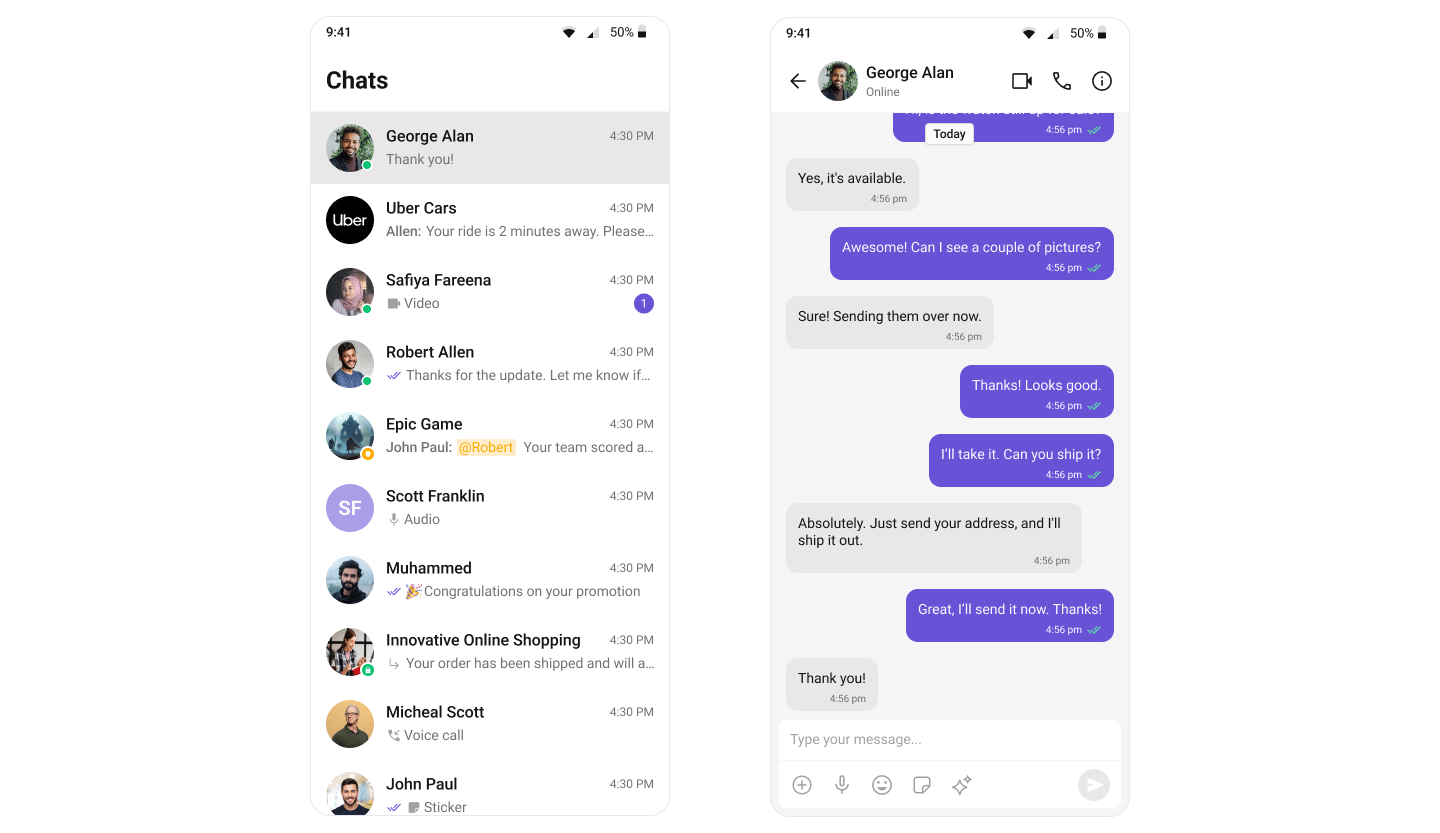
This guide walks you through adding CometChat to an Android app. By the end you'll have a working chat UI.
 ***
## Prerequisites
You need three things from the [CometChat Dashboard](https://app.cometchat.com/):
| Credential | Where to find it |
| ---------- | ---------------------------------------------------------- |
| App ID | Dashboard → Your App → Credentials |
| Auth Key | Dashboard → Your App → Credentials |
| Region | Dashboard → Your App → Credentials (e.g. `us`, `eu`, `in`) |
You also need:
* Android Studio installed
* An Android emulator or physical device running Android 7.0 (API 24) or higher
* Java 8 or higher
* Gradle plugin 4.0.1 or later
Auth Key is for development only. In production, generate Auth Tokens server-side via the [REST API](https://api-explorer.cometchat.com/) and use [`loginWithAuthToken()`](/ui-kit/android/v6/methods#login-using-auth-token). Never ship Auth Keys in client code.
***
## Step 1 — Create an Android Project
1. Open Android Studio and start a new project.
2. Choose Empty Activity as the project template.
3. Enter a project name and choose Kotlin as the language.
4. Set minimum API level to 24 or higher.
***
## Step 2 — Install Dependencies
Add the CometChat repository and dependencies to your Gradle configuration.
### Add the CometChat Repository
Add the CometChat Maven repository to your project-level `settings.gradle.kts` file:
```kotlin settings.gradle.kts theme={null}
dependencyResolutionManagement {
repositoriesMode.set(RepositoriesMode.FAIL_ON_PROJECT_REPOS)
repositories {
google()
mavenCentral()
maven("https://dl.cloudsmith.io/public/cometchat/cometchat/maven/")
}
}
```
### Add the CometChat Dependency
Choose the module that matches your UI toolkit:
Inside `libs.versions.toml`, add the versions:
```toml libs.versions.toml theme={null}
[versions]
cometchat-ui-kit = "6.0.0"
cometchat-calls-sdk = "5.0.0-beta.2"
```
Define the libraries — pick the module for your UI toolkit:
```toml libs.versions.toml theme={null}
[libraries]
cometchat-ui-kit = { module = "com.cometchat:chatuikit-kotlin-android", version.ref = "cometchat-ui-kit" }
cometchat-calls-sdk = { module = "com.cometchat:calls-sdk-android", version.ref = "cometchat-calls-sdk" }
```
```toml libs.versions.toml theme={null}
[libraries]
cometchat-ui-kit = { module = "com.cometchat:chatuikit-compose-android", version.ref = "cometchat-ui-kit" }
cometchat-calls-sdk = { module = "com.cometchat:calls-sdk-android", version.ref = "cometchat-calls-sdk" }
```
Now, in your app-level `build.gradle.kts` file:
```kotlin build.gradle.kts theme={null}
dependencies {
implementation(libs.cometchat.ui.kit)
// (Optional) Include if using voice/video calling features
implementation(libs.cometchat.calls.sdk)
}
```
Open the app-level `build.gradle.kts` file and add the dependency for your chosen UI toolkit:
```kotlin build.gradle.kts theme={null}
dependencies {
implementation("com.cometchat:chatuikit-kotlin-android:6.0.0")
// (Optional) Include if using voice/video calling features
implementation("com.cometchat:calls-sdk-android:5.0.0-beta.2")
}
```
```kotlin build.gradle.kts theme={null}
dependencies {
implementation("com.cometchat:chatuikit-compose-android:6.0.0")
// (Optional) Include if using voice/video calling features
implementation("com.cometchat:calls-sdk-android:5.0.0-beta.2")
}
```
### Add AndroidX Support
The Jetifier tool helps migrate legacy support libraries to AndroidX. Open `gradle.properties` and verify this line is present:
```properties gradle.properties theme={null}
android.enableJetifier=true
```
***
## Choose Your UI Toolkit
The remaining integration steps (initialization, login, theming, and rendering components) differ depending on your chosen UI toolkit. Follow the guide that matches your project:
Step-by-step integration using `chatuikit-kotlin` with XML layouts and ViewBinding
Step-by-step integration using `chatuikit-jetpack` with Composables
***
## Build Your Own Chat Experience
Need full control over the UI? Use individual components, customize themes, and wire up your own layouts.
Working reference app to compare against
All prebuilt UI elements with customization options
Messaging, real-time updates, and other capabilities
Colors, fonts, dark mode, and custom styling
***
## Next Steps
Browse all prebuilt UI components
Customize colors, fonts, and styles
Chat features included out of the box
Common issues and fixes
***
## Prerequisites
You need three things from the [CometChat Dashboard](https://app.cometchat.com/):
| Credential | Where to find it |
| ---------- | ---------------------------------------------------------- |
| App ID | Dashboard → Your App → Credentials |
| Auth Key | Dashboard → Your App → Credentials |
| Region | Dashboard → Your App → Credentials (e.g. `us`, `eu`, `in`) |
You also need:
* Android Studio installed
* An Android emulator or physical device running Android 7.0 (API 24) or higher
* Java 8 or higher
* Gradle plugin 4.0.1 or later
Auth Key is for development only. In production, generate Auth Tokens server-side via the [REST API](https://api-explorer.cometchat.com/) and use [`loginWithAuthToken()`](/ui-kit/android/v6/methods#login-using-auth-token). Never ship Auth Keys in client code.
***
## Step 1 — Create an Android Project
1. Open Android Studio and start a new project.
2. Choose Empty Activity as the project template.
3. Enter a project name and choose Kotlin as the language.
4. Set minimum API level to 24 or higher.
***
## Step 2 — Install Dependencies
Add the CometChat repository and dependencies to your Gradle configuration.
### Add the CometChat Repository
Add the CometChat Maven repository to your project-level `settings.gradle.kts` file:
```kotlin settings.gradle.kts theme={null}
dependencyResolutionManagement {
repositoriesMode.set(RepositoriesMode.FAIL_ON_PROJECT_REPOS)
repositories {
google()
mavenCentral()
maven("https://dl.cloudsmith.io/public/cometchat/cometchat/maven/")
}
}
```
### Add the CometChat Dependency
Choose the module that matches your UI toolkit:
Inside `libs.versions.toml`, add the versions:
```toml libs.versions.toml theme={null}
[versions]
cometchat-ui-kit = "6.0.0"
cometchat-calls-sdk = "5.0.0-beta.2"
```
Define the libraries — pick the module for your UI toolkit:
```toml libs.versions.toml theme={null}
[libraries]
cometchat-ui-kit = { module = "com.cometchat:chatuikit-kotlin-android", version.ref = "cometchat-ui-kit" }
cometchat-calls-sdk = { module = "com.cometchat:calls-sdk-android", version.ref = "cometchat-calls-sdk" }
```
```toml libs.versions.toml theme={null}
[libraries]
cometchat-ui-kit = { module = "com.cometchat:chatuikit-compose-android", version.ref = "cometchat-ui-kit" }
cometchat-calls-sdk = { module = "com.cometchat:calls-sdk-android", version.ref = "cometchat-calls-sdk" }
```
Now, in your app-level `build.gradle.kts` file:
```kotlin build.gradle.kts theme={null}
dependencies {
implementation(libs.cometchat.ui.kit)
// (Optional) Include if using voice/video calling features
implementation(libs.cometchat.calls.sdk)
}
```
Open the app-level `build.gradle.kts` file and add the dependency for your chosen UI toolkit:
```kotlin build.gradle.kts theme={null}
dependencies {
implementation("com.cometchat:chatuikit-kotlin-android:6.0.0")
// (Optional) Include if using voice/video calling features
implementation("com.cometchat:calls-sdk-android:5.0.0-beta.2")
}
```
```kotlin build.gradle.kts theme={null}
dependencies {
implementation("com.cometchat:chatuikit-compose-android:6.0.0")
// (Optional) Include if using voice/video calling features
implementation("com.cometchat:calls-sdk-android:5.0.0-beta.2")
}
```
### Add AndroidX Support
The Jetifier tool helps migrate legacy support libraries to AndroidX. Open `gradle.properties` and verify this line is present:
```properties gradle.properties theme={null}
android.enableJetifier=true
```
***
## Choose Your UI Toolkit
The remaining integration steps (initialization, login, theming, and rendering components) differ depending on your chosen UI toolkit. Follow the guide that matches your project:
Step-by-step integration using `chatuikit-kotlin` with XML layouts and ViewBinding
Step-by-step integration using `chatuikit-jetpack` with Composables
***
## Build Your Own Chat Experience
Need full control over the UI? Use individual components, customize themes, and wire up your own layouts.
Working reference app to compare against
All prebuilt UI elements with customization options
Messaging, real-time updates, and other capabilities
Colors, fonts, dark mode, and custom styling
***
## Next Steps
Browse all prebuilt UI components
Customize colors, fonts, and styles
Chat features included out of the box
Common issues and fixes