> ## Documentation Index
> Fetch the complete documentation index at: https://cometchat-22654f5b-docs-agent-in-group-react-v6.mintlify.site/llms.txt
> Use this file to discover all available pages before exploring further.
# Overview
> Overview of Overview in CometChat.
🚀 **CometChat Android UI Kit v6 is now available!** It features a completely revamped component architecture and improved theming. [Try the v6 →](/ui-kit/android/v6/overview)
The CometChat Android Java UI Kit is developed to keep developers in mind and aims to reduce development efforts significantly.
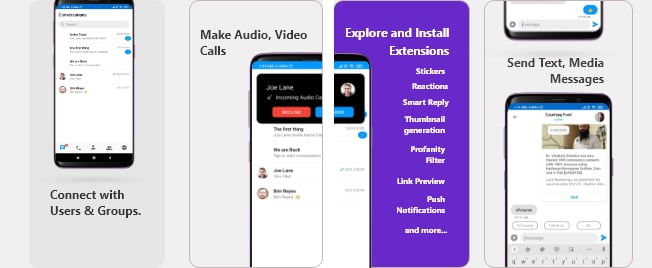 The UI Kit’s customizable UI components simplify the process of integrating text chat and voice/video calling features to your website or mobile application in a few minutes.
Follow the steps mentioned in the `README.md` file.
Kindly, click on below button to download our Android Java Chat UI Kit.
[Java Chat UI Kit](https://github.com/cometchat-pro/android-java-chat-ui-kit/archive/v2.zip)
[View on Github](https://github.com/cometchat-pro/android-java-chat-ui-kit/tree/v2)
Import the app into Android Studio and follow the steps mentioned in the `README.md` file.
Kindly, click on below button to download our Java Sample App.
[Java Sample App](https://github.com/cometchat-pro-samples/android-java-chat-app/archive/v2.zip)
[View on Github](https://github.com/cometchat-pro-samples/android-java-chat-app/tree/v2)
## **Prerequisites** ⭐
Before you begin, ensure you have met the following requirements:
✅ You have `Android Studio` installed in your machine.
✅ You have a `Android Device or Emulator` with Android Version 6.0 or above.
✅ You have read [CometChat Key Concepts](/ui-kit/android/v2/key-concepts)
## Installing Android Java Chat UI Kit
### **Setup** 🔧
To setup Android Chat UI Kit, you need to first register on CometChat Dashboard. [Click here to sign up](https://app.cometchat.com/login).
### **Get your Application Keys** 🔑
1. Create a new app: Click **Add App** option available → Enter App Name & other information → Create App
2. You will find `APP_ID`, `AUTH_KEY` and `REGION` key at the top in **QuickStart** section or else go to "API & Auth Keys" section and copy the `APP_ID`, `API_KEY` and `REGION` key from the "Auth Only API Key" tab.
#### **Add the CometChat Dependency**
**Step 1 -** Add the repository URL to the **project level**`build.gradle` file in the repositories block under the `allprojects` section.
```gradle theme={null}
allprojects {
repositories {
maven {
url "https://dl.cloudsmith.io/public/cometchat/cometchat-pro-android/maven/"
}
}
}
```
**Step 2-** Open the **app level**`build.gradle` file and follow below
1. Add the below line in the dependencies section.
```gradle theme={null}
dependencies {
implementation 'com.cometchat:pro-android-chat-sdk:2.4.1'
/*v2.4+ onwards, Voice & Video Calling functionality has been
moved to a separate library. In case you plan to use the calling feature,
please add the Calling dependency*/
implementation 'com.cometchat:pro-android-calls-sdk:2.1.0'
}
```
2. Add the below lines android section
```gradle theme={null}
android {
compileOptions {
sourceCompatibility JavaVersion.VERSION_1_8
targetCompatibility JavaVersion.VERSION_1_8
}
}
```
You can refer to the below link for instructions on how to do so:
[📝 Add CometChat Dependency](/sdk/android/2.0/setup#add-the-cometchat-dependency) `Documentation`
***
### **Configure CometChat SDK**
#### **Initialize CometChat** 🌟
The init() method initializes the settings required for CometChat. We suggest calling the init() method on app startup, preferably in the onCreate() method of the Application class.
```java theme={null}
String appID = "APP_ID"; // Replace with your App ID
String region = "REGION"; // Replace with your App Region ("eu" or "us")
String authKey = "AUTH_KEY"; //Replace with your Auth Key.
AppSettings appSettings=new AppSettings.AppSettingsBuilder().subscribePresenceForAllUsers().setRegion(region).build();
CometChat.init(this, appID,appSettings, new CometChat.CallbackListener() {
@Override
public void onSuccess(String successMessage) {
UIKitSettings.setAuthKey(authKey);
CometChat.setSource("ui-kit","android","java");
Log.d(TAG, "Initialization completed successfully");
}
@Override
public void onError(CometChatException e) {
Log.d(TAG, "Initialization failed with exception: " + e.getMessage());
}
});
```
`Tip` UIKitSettings.setAuthKey(String authKey) is used to pass the Auth Key to uiKit library.
Make sure to replace `region` and `appID` with your credentials in the above code snippet.
#### **Login User** 👤
Once you have created the user successfully, you will need to log the user into CometChat using the login() method.
```java theme={null}
String UID = "user1"; // Replace with the UID of the user to login
String authKey = "AUTH_KEY"; // Replace with your App Auth Key
if (CometChat.getLoggedInUser() == null) {
CometChat.login(UID, authKey, new CometChat.CallbackListener() {
@Override
public void onSuccess(User user) {
Log.d(TAG, "Login Successful : " + user.toString());
}
@Override
public void onError(CometChatException e) {
Log.d(TAG, "Login failed with exception: " + e.getMessage());
}
});
} else {
// User already logged in
}
```
* The `login()` method needs to be called only once.
* Replace `AUTH_KEY` with your App Auth Key in the above code snippet
***
📝 Please refer to our [**SDK Documentation**](/sdk/android/2.0/overview) for more information on how to configure the CometChat Pro SDK and implement various features using the same.
### **Add UI Kit Library**
To integrate the UI Kit, please follow the steps below:
* Clone the UI Kit Library from the [**android-chat-ui-kit repository**](https://github.com/cometchat-pro/android-java-chat-ui-kit/tree/v2) or
[Download UI Kit Library](https://github.com/cometchat-pro/android-java-chat-ui-kit/archive/v2.zip)
* Import `uikit` Module from Module Settings.( To know how to import `uikit` as Module visit this [link](https://www.cometchat.com/docs/ui-kit/android/v2/overview#setup-) )
* If the Library is added sucessfully, it will look like mentioned in the below image.
The UI Kit’s customizable UI components simplify the process of integrating text chat and voice/video calling features to your website or mobile application in a few minutes.
Follow the steps mentioned in the `README.md` file.
Kindly, click on below button to download our Android Java Chat UI Kit.
[Java Chat UI Kit](https://github.com/cometchat-pro/android-java-chat-ui-kit/archive/v2.zip)
[View on Github](https://github.com/cometchat-pro/android-java-chat-ui-kit/tree/v2)
Import the app into Android Studio and follow the steps mentioned in the `README.md` file.
Kindly, click on below button to download our Java Sample App.
[Java Sample App](https://github.com/cometchat-pro-samples/android-java-chat-app/archive/v2.zip)
[View on Github](https://github.com/cometchat-pro-samples/android-java-chat-app/tree/v2)
## **Prerequisites** ⭐
Before you begin, ensure you have met the following requirements:
✅ You have `Android Studio` installed in your machine.
✅ You have a `Android Device or Emulator` with Android Version 6.0 or above.
✅ You have read [CometChat Key Concepts](/ui-kit/android/v2/key-concepts)
## Installing Android Java Chat UI Kit
### **Setup** 🔧
To setup Android Chat UI Kit, you need to first register on CometChat Dashboard. [Click here to sign up](https://app.cometchat.com/login).
### **Get your Application Keys** 🔑
1. Create a new app: Click **Add App** option available → Enter App Name & other information → Create App
2. You will find `APP_ID`, `AUTH_KEY` and `REGION` key at the top in **QuickStart** section or else go to "API & Auth Keys" section and copy the `APP_ID`, `API_KEY` and `REGION` key from the "Auth Only API Key" tab.
#### **Add the CometChat Dependency**
**Step 1 -** Add the repository URL to the **project level**`build.gradle` file in the repositories block under the `allprojects` section.
```gradle theme={null}
allprojects {
repositories {
maven {
url "https://dl.cloudsmith.io/public/cometchat/cometchat-pro-android/maven/"
}
}
}
```
**Step 2-** Open the **app level**`build.gradle` file and follow below
1. Add the below line in the dependencies section.
```gradle theme={null}
dependencies {
implementation 'com.cometchat:pro-android-chat-sdk:2.4.1'
/*v2.4+ onwards, Voice & Video Calling functionality has been
moved to a separate library. In case you plan to use the calling feature,
please add the Calling dependency*/
implementation 'com.cometchat:pro-android-calls-sdk:2.1.0'
}
```
2. Add the below lines android section
```gradle theme={null}
android {
compileOptions {
sourceCompatibility JavaVersion.VERSION_1_8
targetCompatibility JavaVersion.VERSION_1_8
}
}
```
You can refer to the below link for instructions on how to do so:
[📝 Add CometChat Dependency](/sdk/android/2.0/setup#add-the-cometchat-dependency) `Documentation`
***
### **Configure CometChat SDK**
#### **Initialize CometChat** 🌟
The init() method initializes the settings required for CometChat. We suggest calling the init() method on app startup, preferably in the onCreate() method of the Application class.
```java theme={null}
String appID = "APP_ID"; // Replace with your App ID
String region = "REGION"; // Replace with your App Region ("eu" or "us")
String authKey = "AUTH_KEY"; //Replace with your Auth Key.
AppSettings appSettings=new AppSettings.AppSettingsBuilder().subscribePresenceForAllUsers().setRegion(region).build();
CometChat.init(this, appID,appSettings, new CometChat.CallbackListener() {
@Override
public void onSuccess(String successMessage) {
UIKitSettings.setAuthKey(authKey);
CometChat.setSource("ui-kit","android","java");
Log.d(TAG, "Initialization completed successfully");
}
@Override
public void onError(CometChatException e) {
Log.d(TAG, "Initialization failed with exception: " + e.getMessage());
}
});
```
`Tip` UIKitSettings.setAuthKey(String authKey) is used to pass the Auth Key to uiKit library.
Make sure to replace `region` and `appID` with your credentials in the above code snippet.
#### **Login User** 👤
Once you have created the user successfully, you will need to log the user into CometChat using the login() method.
```java theme={null}
String UID = "user1"; // Replace with the UID of the user to login
String authKey = "AUTH_KEY"; // Replace with your App Auth Key
if (CometChat.getLoggedInUser() == null) {
CometChat.login(UID, authKey, new CometChat.CallbackListener() {
@Override
public void onSuccess(User user) {
Log.d(TAG, "Login Successful : " + user.toString());
}
@Override
public void onError(CometChatException e) {
Log.d(TAG, "Login failed with exception: " + e.getMessage());
}
});
} else {
// User already logged in
}
```
* The `login()` method needs to be called only once.
* Replace `AUTH_KEY` with your App Auth Key in the above code snippet
***
📝 Please refer to our [**SDK Documentation**](/sdk/android/2.0/overview) for more information on how to configure the CometChat Pro SDK and implement various features using the same.
### **Add UI Kit Library**
To integrate the UI Kit, please follow the steps below:
* Clone the UI Kit Library from the [**android-chat-ui-kit repository**](https://github.com/cometchat-pro/android-java-chat-ui-kit/tree/v2) or
[Download UI Kit Library](https://github.com/cometchat-pro/android-java-chat-ui-kit/archive/v2.zip)
* Import `uikit` Module from Module Settings.( To know how to import `uikit` as Module visit this [link](https://www.cometchat.com/docs/ui-kit/android/v2/overview#setup-) )
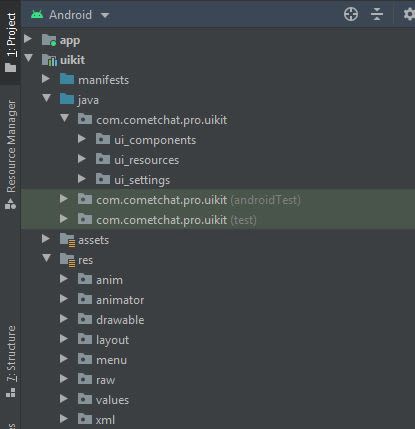
* If the Library is added sucessfully, it will look like mentioned in the below image.
 ### **Configure UI Kit Library**
To use UI Kit you have to add Material Design support in your app as the UI Kit uses Material Design Components.
* Add Material Design Dependency in build.gradle
```gradle theme={null}
dependencies {
implementation 'com.google.android.material:material:'
}
```
* Make sure that your app's theme should extend `Theme.MaterialComponents`. Follow the guide on [Getting started Material Components](https://material.io/develop/android/docs/getting-started/)
The following is the list of Material Components themes you can use to get the latest component styles and theme-level attributes.
* `Theme.MaterialComponents.NoActionBar`
* Theme.MaterialComponents.Light.NoActionBar
* Theme.MaterialComponents.DayNight.NoActionBar
Update your app theme to inherit from one of these themes, e.g.:
```xml theme={null}
```
Enable DataBinding
As the UI Kit uses DataBinding you must enable DataBinding
To configure your app to use data binding, add the dataBinding element to your `build.gradle` file in the app module, as shown in the following example:
```gradle theme={null}
android {
dataBinding {
enabled = true
}
}
```
Important
We are using File Provider for storage & file access. So you need to add your application package name in manifestPlaceholders
```gradle theme={null}
android {
defaultConfig {
...
manifestPlaceholders = [file_provider: "YOUR_PACKAGE_NAME"]
//add your application package.
}
}
```
***
### Launch CometChat UI
### **Configure UI Kit Library**
To use UI Kit you have to add Material Design support in your app as the UI Kit uses Material Design Components.
* Add Material Design Dependency in build.gradle
```gradle theme={null}
dependencies {
implementation 'com.google.android.material:material:'
}
```
* Make sure that your app's theme should extend `Theme.MaterialComponents`. Follow the guide on [Getting started Material Components](https://material.io/develop/android/docs/getting-started/)
The following is the list of Material Components themes you can use to get the latest component styles and theme-level attributes.
* `Theme.MaterialComponents.NoActionBar`
* Theme.MaterialComponents.Light.NoActionBar
* Theme.MaterialComponents.DayNight.NoActionBar
Update your app theme to inherit from one of these themes, e.g.:
```xml theme={null}
```
Enable DataBinding
As the UI Kit uses DataBinding you must enable DataBinding
To configure your app to use data binding, add the dataBinding element to your `build.gradle` file in the app module, as shown in the following example:
```gradle theme={null}
android {
dataBinding {
enabled = true
}
}
```
Important
We are using File Provider for storage & file access. So you need to add your application package name in manifestPlaceholders
```gradle theme={null}
android {
defaultConfig {
...
manifestPlaceholders = [file_provider: "YOUR_PACKAGE_NAME"]
//add your application package.
}
}
```
***
### Launch CometChat UI
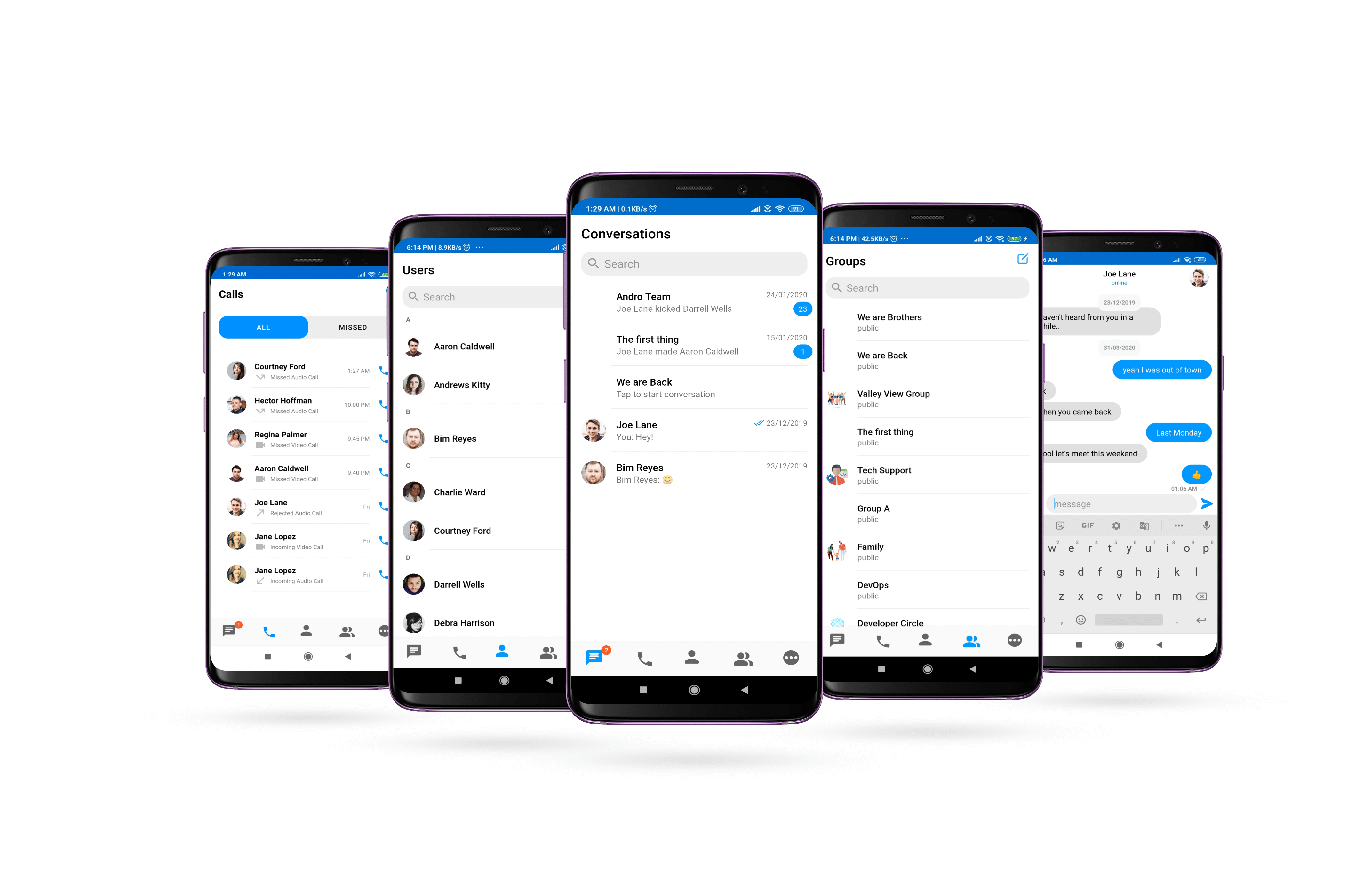 **CometChatUI** is a way to launch a fully working chat application using the UI Kit .In UI Unified all the UI Screens and UI Components working together to give the full experience of a chat application with minimal coding effort.\*
To use CometChatUI user has to launch `CometChatUI` class. Add the following code snippet to launch `CometChatUI`.
```java theme={null}
startActivity(new Intent(YourActivity.this,CometChatUI.class))
```
***
## **Checkout our sample app**
Visit our [Java Sample App](https://github.com/cometchat-pro/android-java-chat-app/tree/v2) repository to run the Android Java sample app.
**CometChatUI** is a way to launch a fully working chat application using the UI Kit .In UI Unified all the UI Screens and UI Components working together to give the full experience of a chat application with minimal coding effort.\*
To use CometChatUI user has to launch `CometChatUI` class. Add the following code snippet to launch `CometChatUI`.
```java theme={null}
startActivity(new Intent(YourActivity.this,CometChatUI.class))
```
***
## **Checkout our sample app**
Visit our [Java Sample App](https://github.com/cometchat-pro/android-java-chat-app/tree/v2) repository to run the Android Java sample app.