> ## Documentation Index
> Fetch the complete documentation index at: https://cometchat-22654f5b-docs-agent-in-group-react-v6.mintlify.site/llms.txt
> Use this file to discover all available pages before exploring further.
# Color Resources
> Customize CometChat Android UI Kit color resources with brand colors, backgrounds, text, alerts, dark mode, and theme values.
| Field | Value |
| ------------------ | ------------------------------------------------------------------------------------------------------------------ |
| Goal | Review and override the default UI Kit color palette for light and dark modes |
| Light mode | `app/src/main/res/values/color.xml` |
| Dark mode | `app/src/main/res/values-night/color.xml` |
| Override via theme | Set `cometchatPrimaryColor` in `themes.xml` |
| Constraints | App theme must extend `CometChatTheme.DayNight` |
| Related | [Theme Introduction](/ui-kit/android/theme-introduction) \| [Component Styling](/ui-kit/android/component-styling) |
Use CometChat UI Kit color resources to keep a consistent visual identity in light and dark modes.
## When to use this
* You want to review the default UI Kit color palette.
* You need consistent colors across text, buttons, backgrounds, and icons.
* You want to override the primary brand color via theming.
* You want light and dark mode color consistency.
## Prerequisites
* CometChat UI Kit for Android is installed and initialized.
* You can edit `app/src/main/res/values/color.xml` and `app/src/main/res/values-night/color.xml`.
* You can edit `app/src/main/res/values/themes.xml`.
* Your app theme extends `CometChatTheme.DayNight`.
## Quick start
File: `app/src/main/res/values/color.xml`.
File: `app/src/main/res/values-night/color.xml`.
File: `app/src/main/res/values/themes.xml`. Set `cometchatPrimaryColor`.
File: `AndroidManifest.xml`. Set `android:theme` on ``.
Run the app and confirm UI Kit screens match your palette in light and dark mode.
## Core concepts
* Primary colors define the main theme of the UI.
* Neutral colors are used for backgrounds, strokes, and secondary elements.
* Alert colors highlight success, warning, error, or info states.
* Text and icon colors control typography and icon appearance.
* Light mode colors live in `res/values/color.xml` and dark mode colors in `res/values-night/color.xml`.
## Implementation
### Review the default light mode colors
What you're changing: The color resources used in light mode.
* **Where to change it**: `app/src/main/res/values/color.xml`.
* **Applies to**: Light mode only.
* **Default behavior**: UI Kit uses its predefined light mode palette.
* **Override**: Edit the values or reference them in your theme.
* **Code**:
```xml color.xml lines theme={null}
#6852D6
#FFFFFF
#141414
@color/cometchat_color_neutral_900
```
* **What this does**: Shows the default light mode color definitions used by UI Kit.
* **Verify**: Light mode UI Kit screens match these colors.
### Review the default dark mode colors
What you're changing: The color resources used in dark mode.
* **Where to change it**: `app/src/main/res/values-night/color.xml`.
* **Applies to**: Dark mode only.
* **Default behavior**: UI Kit uses its predefined dark mode palette.
* **Override**: Edit the values or reference them in your theme.
* **Code**:
```xml values-night/color.xml lines theme={null}
#6852D6
#141414
#FFFFFF
@color/cometchat_color_neutral_900
```
* **What this does**: Shows the default dark mode color definitions used by UI Kit.
* **Verify**: Dark mode UI Kit screens match these colors.
To view the complete list of colors for both light and dark modes, use the [Light mode colors](https://github.com/cometchat/cometchat-uikit-android/blob/v5/chatuikit/src/main/res/values/color.xml) and [Dark mode colors](https://github.com/cometchat/cometchat-uikit-android/blob/v5/chatuikit/src/main/res/values-night/color.xml).
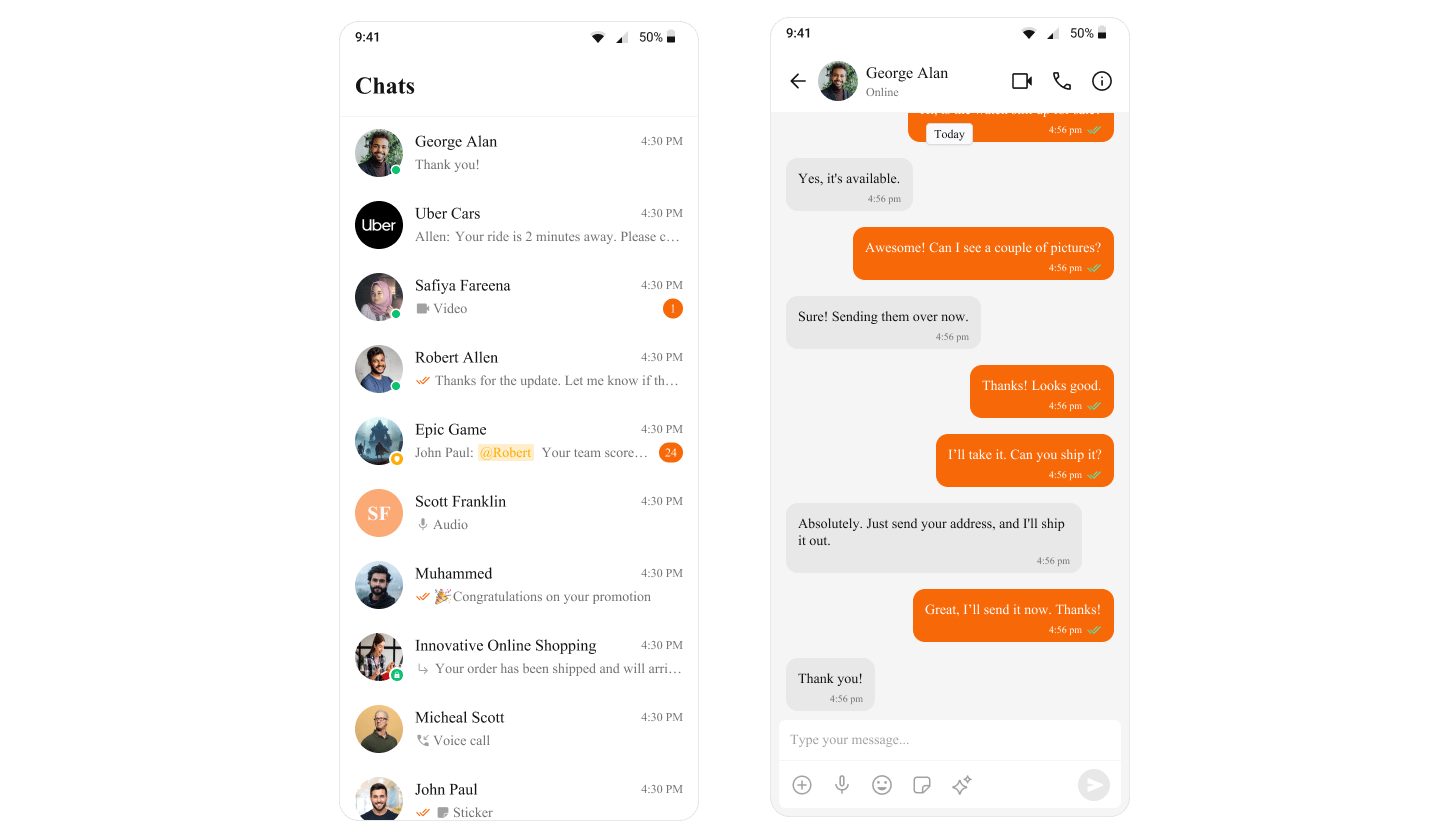
### Override the primary color via your theme
What you're changing: The UI Kit primary color.
* **Where to change it**: `app/src/main/res/values/themes.xml`.
* **Applies to**: All UI Kit components.
* **Default behavior**: UI Kit uses the default primary color.
* **Override**: Set `cometchatPrimaryColor` in your app theme.
* **Code**:
```xml themes.xml lines theme={null}
```
* **What this does**: Replaces the UI Kit primary color with your custom value.
* **Verify**: Buttons and highlights use the new primary color.
 ### Apply your theme in the manifest
What you're changing: The theme applied to your app.
* **Where to change it**: `AndroidManifest.xml`.
* **Applies to**: All activities unless overridden.
* **Default behavior**: The application theme is not set to your UI Kit theme.
* **Override**: Set `android:theme` on the `` element.
* **Code**:
```xml AndroidManifest.xml lines theme={null}
```
* **What this does**: Applies your theme to all app activities.
* **Verify**: UI Kit screens use your updated theme colors.
## Customization matrix
| What you want to change | Where | Property/API | Example |
| ----------------------- | ----------------------------------------- | ------------------------- | ------------------------------------------------------- |
| Light mode palette | `app/src/main/res/values/color.xml` | `cometchat_color_primary` | `#6852D6` |
| Dark mode palette | `app/src/main/res/values-night/color.xml` | `cometchat_color_primary` | `#6852D6` |
| Primary color override | `app/src/main/res/values/themes.xml` | `cometchatPrimaryColor` | `
### Apply your theme in the manifest
What you're changing: The theme applied to your app.
* **Where to change it**: `AndroidManifest.xml`.
* **Applies to**: All activities unless overridden.
* **Default behavior**: The application theme is not set to your UI Kit theme.
* **Override**: Set `android:theme` on the `` element.
* **Code**:
```xml AndroidManifest.xml lines theme={null}
```
* **What this does**: Applies your theme to all app activities.
* **Verify**: UI Kit screens use your updated theme colors.
## Customization matrix
| What you want to change | Where | Property/API | Example |
| ----------------------- | ----------------------------------------- | ------------------------- | ------------------------------------------------------- |
| Light mode palette | `app/src/main/res/values/color.xml` | `cometchat_color_primary` | `#6852D6` |
| Dark mode palette | `app/src/main/res/values-night/color.xml` | `cometchat_color_primary` | `#6852D6` |
| Primary color override | `app/src/main/res/values/themes.xml` | `cometchatPrimaryColor` | `- #F76808
` |
| Apply theme | `AndroidManifest.xml` | `android:theme` | `android:theme="@style/AppTheme"` |